
Download SS Recorder – Free Screen Capture Software for Windows, Mac, Android & iOS
SS Recorder is a powerful and intuitive screen capture tool designed for Windows PC users who need to record their screen or take high-quality screenshots with ease. Whether you're creating educational content, recording online meetings, developing software tutorials, or capturing gameplay, SS Recorder delivers reliable performance and flexible options. The software supports both video and image capture, allowing you to save recordings directly to your desktop for quick access.
With customizable settings, you can choose to capture the entire screen, a specific window, or a custom region. While it supports external audio input—such as your microphone—note that it does not currently offer internal audio recording (system sound). This makes it ideal for voice-over recordings, live presentations, and remote teaching.
Its lightweight design ensures minimal impact on system performance, making it suitable for everyday use across a variety of devices.
Key Features of SS Recorder
SS Recorder stands out with a suite of user-friendly features tailored to both beginners and advanced users. One of its most appreciated features is the ability to capture the entire screen, individual windows, or a custom-defined area—perfect for focusing on specific content without distractions. The intuitive interface lets you start recording with just a few clicks, reducing the learning curve for new users. Another standout feature is the support for external audio capture, allowing you to record your voice through a connected microphone while capturing your screen. This is especially useful for creating instructional videos, podcast recordings, or live-streaming content.
Additionally, SS Recorder offers customizable hotkeys, enabling you to begin and stop recordings instantly without navigating through menus. This is a major time-saver during live sessions or fast-paced workflows. The software automatically saves recordings to your desktop by default, ensuring you never lose your files.
You can also adjust video quality and frame rate settings to balance file size and clarity, depending on your needs. For users concerned about privacy and security, SS Recorder does not collect or transmit your data—your recordings stay private and local. The app is free to download and use, with optional in-app upgrades for advanced features, making it an excellent choice for students, educators, content creators, and professionals.
How to Install and Use SS Recorder on Windows, Mac, Android & iOS
Getting started with SS Recorder is quick and straightforward. First, visit the official website and download the software compatible with your device. For Windows users, the installer is lightweight and runs smoothly on Windows 7 through Windows 11. After downloading, simply run the .exe file and follow the on-screen instructions. The installation process takes less than a minute and doesn’t require advanced technical knowledge.
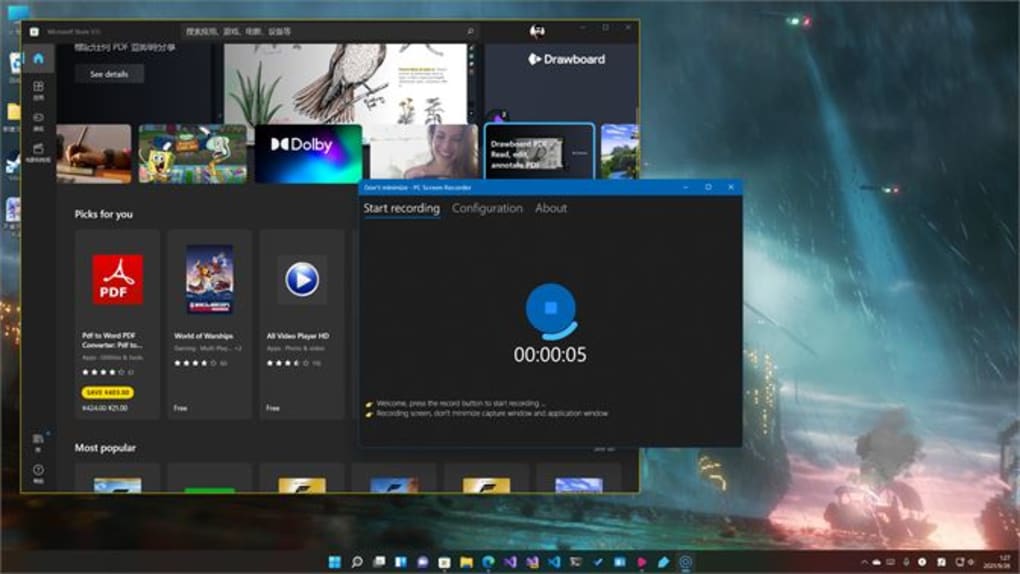
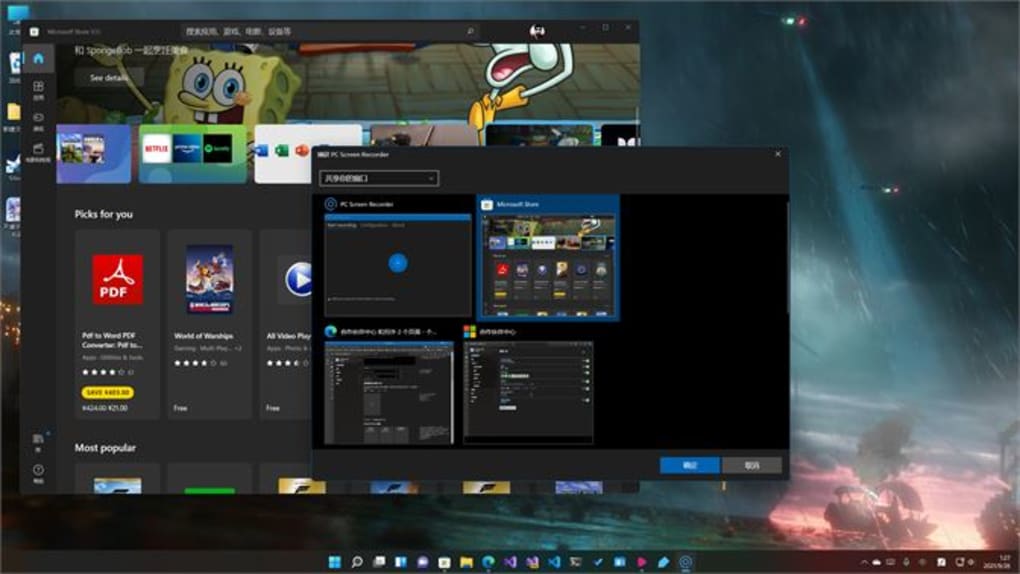
Once installed, launch SS Recorder. The main interface displays clear buttons for starting a screen recording, capturing a screenshot, or accessing settings. To begin recording, click the “Record” button and choose your capture mode—full screen, window, or custom region.
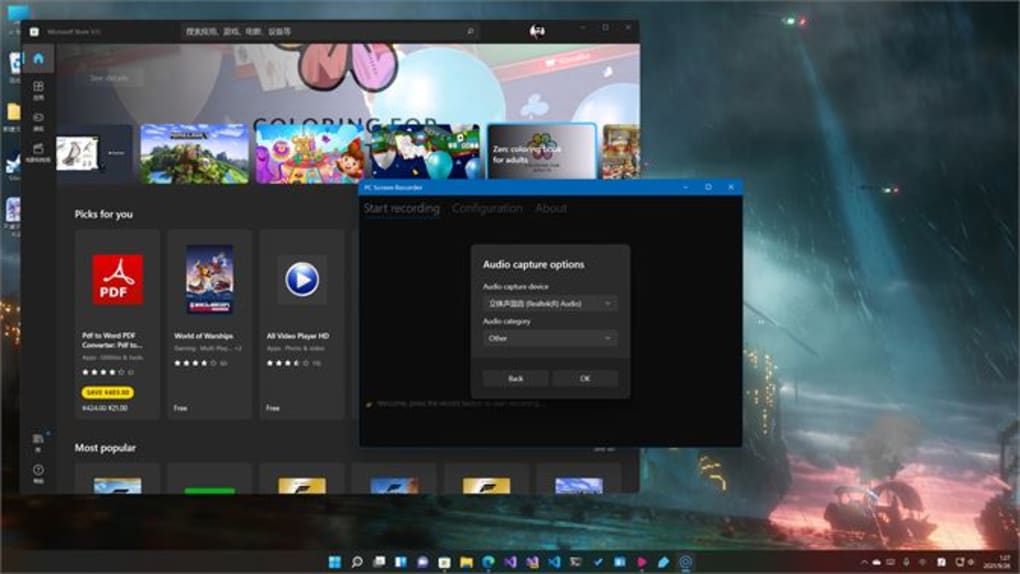
If you're recording audio, ensure your microphone is selected in the audio settings before starting. Press the designated hotkey (default is Ctrl+Shift+R) to start and stop recording instantly. After finishing, your video will be saved to your desktop with a default filename and timestamp.
For Mac users, the app is available via the official download portal and supports macOS 10.14 and later. Android and iOS versions are also available, offering mobile screen recording with similar functionality. On mobile devices, you can record app interactions, gameplay, or short tutorials directly from your smartphone or tablet. The app maintains consistent performance across platforms, ensuring a seamless experience whether you're working on a desktop or on the go.
Compatibility & System Requirements
SS Recorder is designed to be highly compatible across multiple operating systems. It runs smoothly on Windows 7, 8, 10, and 11, making it accessible to the vast majority of PC users. For Mac users, the software supports macOS 10.14 (Mojave) and newer versions, including Apple Silicon (M1/M2) Macs, ensuring excellent performance on modern hardware. This broad compatibility makes it a versatile choice for both home and office environments.
On mobile platforms, SS Recorder is available for Android 8.0 and above, as well as iOS 12 and later. This allows users to record screen content from smartphones and tablets without needing a PC. The mobile app supports recording both video and audio, though internal audio (system sound) is not captured—only microphone input is supported. This limitation is consistent across all platforms, so users should plan accordingly when recording content that requires background audio.
System requirements are modest, requiring only 512 MB of RAM and 100 MB of free disk space. This low footprint ensures that even older or budget devices can run the software efficiently. The app uses minimal CPU and GPU resources during recording, reducing lag and maintaining system responsiveness. Whether you're using a high-end workstation or a lightweight laptop, SS Recorder adapts to your hardware without compromising quality.
Pros and Cons of SS Recorder
- Pros:
- Free to download and use with no hidden fees
- Simple, intuitive interface ideal for beginners
- Supports full screen, window, and custom region capture
- External audio recording via microphone
- Customizable hotkeys for quick access
- Lightweight with minimal system impact
- Available on Windows, Mac, Android, and iOS
- Secure and private—no data collection
- Cons:
- Does not support internal audio recording (system sound)
- Limited editing features post-recording
- No built-in cloud storage or sharing tools
- Basic settings compared to premium alternatives
- Mobile version lacks advanced recording modes
Frequently Asked Questions (FAQ)
- Can I record system audio with SS Recorder?
Answer: No, SS Recorder does not support internal audio recording. It only captures audio from external devices like your microphone. If you need to record system sound, you may need to use a third-party audio routing tool or consider a premium screen recorder with this feature.
- Is SS Recorder free to use?
Answer: Yes, SS Recorder is completely free to download and use. There are no time limits or watermarks on recordings. While there are optional in-app upgrades, the core features are available at no cost.
- Does SS Recorder work on Mac and mobile devices?
Answer: Yes, SS Recorder is available for macOS 10.14 and later, as well as Android 8.0+ and iOS 12+. The mobile versions allow you to record your phone or tablet screen with microphone audio.
- Can I edit my recordings after capturing them?
Answer: SS Recorder does not include built-in video editing tools. However, you can export your recordings and edit them using third-party software like Windows Video Editor, iMovie, or DaVinci Resolve.
- How do I stop a recording?
Answer: You can stop a recording by clicking the stop button in the app’s interface or using the assigned hotkey (default: Ctrl+Shift+S). The recording will be automatically saved to your desktop.
Conclusion: Why Choose SS Recorder?
SS Recorder is an excellent choice for anyone seeking a reliable, free screen capture tool with broad compatibility. Its straightforward design, support for multiple platforms, and strong performance make it ideal for students, teachers, remote workers, and content creators. While it lacks internal audio recording—a notable limitation—it excels in simplicity, speed, and privacy. If you're looking for a secure, lightweight app to capture your screen or record tutorials with your voice, SS Recorder delivers real value without a price tag.
Ready to start recording? Download SS Recorder today and experience effortless screen capture on Windows, Mac, Android, or iOS. Whether you're teaching online, documenting software, or sharing ideas, this tool helps you do it with confidence and clarity.







